
A slow website can make visitors leave before they explore your products, services, or content. Even if your website looks professional, long loading times can create a poor first impression and make it harder for users to complete important actions.
Website speed optimization helps improve how quickly a page loads, responds to user interactions, and displays content. It involves more than reducing file sizes. Server performance, mobile usability, caching, scripts, and page design can all affect the experience.
Website speed also matters for SEO. Google uses Core Web Vitals to assess important aspects of page experience, including loading performance, responsiveness, and visual stability. However, a high speed score alone does not guarantee better rankings. Your website must also provide useful content and satisfy search intent.
In this guide, you will learn nine practical ways to improve website speed, understand the metrics that matter, and identify which fixes to prioritize.
What Is Website Speed Optimization?
Website speed optimization is the process of improving how quickly a website loads and becomes usable. The goal is to help visitors access important content without unnecessary delays.
It includes several activities, such as:
- Compressing and resizing images.
- Reducing unnecessary CSS and JavaScript.
- Improving server response time.
- Enabling browser and page caching.
- Removing unnecessary plugins and third-party scripts.
- Improving mobile performance.
- Monitoring real-user experience.
Page speed and website speed are related but slightly different. Page speed refers to the performance of an individual page, while website speed can describe performance across the site.
For example, your homepage may load quickly while a product category page takes longer because it contains large images, filters, and additional scripts. Testing important URLs separately helps identify these differences.
Why Is Website Speed Important for SEO and User Experience?
Website speed affects how people experience your website. Visitors want to find information, compare products, or contact a business without unnecessary waiting.
A slow website can create several problems:
Higher abandonment: Visitors may leave if important content takes too long to appear.
Lower engagement: Slow navigation can discourage users from exploring additional pages.
Reduced conversions: Delays during product browsing, form submission, or checkout can interrupt the customer journey.
Mobile usability problems: Heavy pages can perform poorly on mobile devices and slower connections.
SEO challenges: Poor Core Web Vitals can indicate a weaker page experience. Speed is one part of Google’s broader ranking systems, so it should be improved alongside content quality, relevance, and technical SEO.
For businesses investing in SEO, performance improvements can help visitors use the website more easily after arriving from search results.
You can also review our guide on how to reduce website bounce rate to understand how loading issues and other user experience problems may affect engagement.
Core Web Vitals: The Website Speed Metrics You Should Know
Before making changes, understand the performance metrics used to evaluate the user experience.
Google’s Core Web Vitals include three key metrics: Largest Contentful Paint (LCP), Interaction to Next Paint (INP), and Cumulative Layout Shift (CLS). Their recommended thresholds are based on real-user experience at the 75th percentile. See the official Core Web Vitals guidelines for details.
| Metric | What It Measures | Good Target |
|---|---|---|
| Largest Contentful Paint (LCP) | How quickly the main content becomes visible | 2.5 seconds or less |
| Interaction to Next Paint (INP) | How quickly a page responds to user interactions | 200 milliseconds or less |
| Cumulative Layout Shift (CLS) | How stable the page layout remains while loading | 0.1 or less |
1. Largest Contentful Paint (LCP)
LCP measures when the largest visible image or text block in the viewport finishes rendering. It helps you understand how quickly visitors can see the main content.
A large hero image, slow server response, or render-blocking resource may delay LCP.
To improve it, optimize the main image, improve server response time, and make sure important above-the-fold content is not waiting for unnecessary scripts or styles.
2. Interaction to Next Paint (INP)
INP measures how responsive a page feels when users click, tap, or interact with it.
Heavy JavaScript, long-running browser tasks, and unnecessary third-party scripts can make interactions feel slow.
Reduce unnecessary scripts, review complex interactive elements, and work with a developer to break up long tasks when needed.
3. Cumulative Layout Shift (CLS)
CLS measures unexpected movement of visible page elements.
For example, a visitor may try to click a button just as an advertisement or image loads above it, moving the button to a different position.
Set appropriate image dimensions, reserve space for advertisements and embeds, and use fonts carefully to reduce unexpected layout changes.
Important: A single laboratory test cannot fully represent every visitor’s experience. Review mobile and desktop results, and use field data when it is available.
9 Proven Website Speed Optimization Techniques
1. Optimize Images Before Uploading
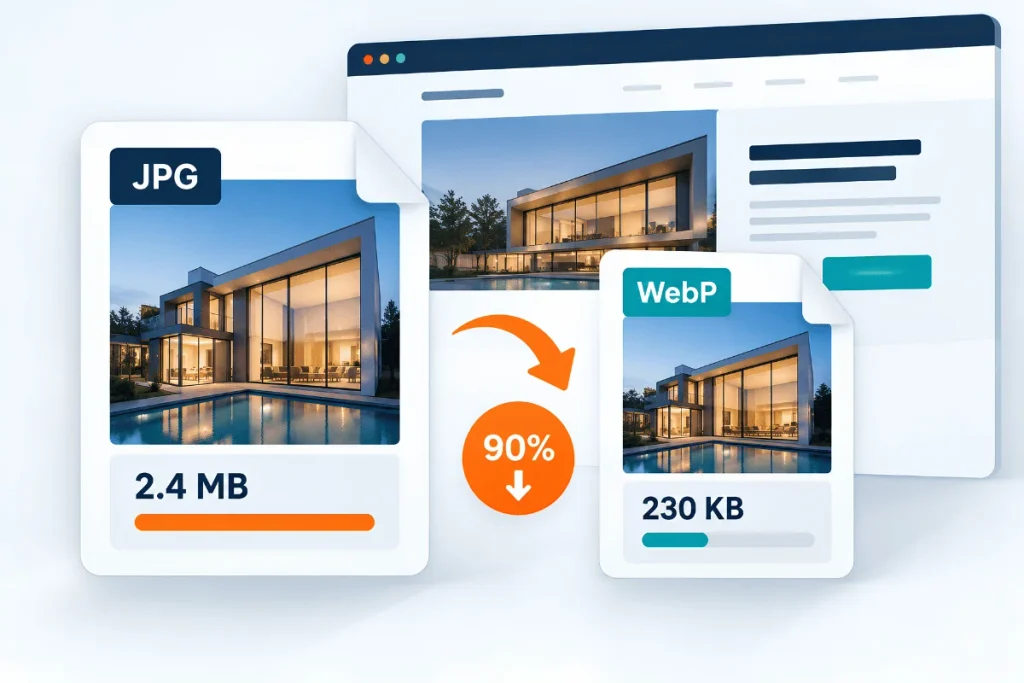
Images often contribute significantly to a webpage’s total size. Large banners, product photographs, background images, and blog graphics can slow down loading when they are not optimized.
Start by reviewing the largest images on your important pages.
Practical steps:
- Convert suitable images to modern formats such as WebP or AVIF.
- Compress images while maintaining acceptable visual quality.
- Resize images to match their actual display dimensions.
- Use responsive images so mobile devices do not download unnecessarily large versions.
- Enable lazy loading for suitable images below the initial viewport.
- Avoid lazy-loading the main image responsible for LCP; it may need to load early.
For example, if a blog image is displayed at 800 pixels wide, uploading a 3,000-pixel image may waste bandwidth when that extra resolution is not needed.
Image optimization should preserve the visual quality of your website. Excessive compression can make product images, diagrams, and professional photographs look poor.
Best practice: Optimize the featured image, hero banner, and other important above-the-fold media first. These elements can have a direct impact on how quickly the page appears ready to visitors.
2. Enable Browser Caching and Page Caching
Caching stores copies of resources or previously generated pages so they can be delivered more efficiently when needed again.
Without suitable caching, a website may repeatedly process requests or download resources that have not changed.
There are different forms of caching:
- Browser caching: Stores eligible files in the visitor’s browser.
- Page caching: Saves a generated page so the server does not need to rebuild it for every request.
- Object caching: Stores frequently used database results to reduce repeated processing.
The right configuration depends on your website platform and hosting setup.
For WordPress websites, a caching plugin can help manage page caching, browser caching, and certain optimization settings. However, overlapping plugins or incorrect configurations can create conflicts.
After enabling caching, test important pages while logged out and check that forms, shopping carts, account pages, and other dynamic features continue to work correctly.
3. Reduce Unnecessary CSS and JavaScript
CSS controls your website’s appearance, while JavaScript powers interactive features. Both are useful, but unnecessary code can increase download time and delay rendering or interaction.
Some websites load scripts for sliders, animations, popups, chat widgets, and other features even when those elements are not needed on a particular page.
Review the resources loaded by your most important URLs.
Try these improvements:
- Remove unused plugins, themes, and scripts.
- Minify CSS, JavaScript, and HTML where appropriate.
- Defer non-critical JavaScript.
- Use asynchronous loading when suitable.
- Reduce unnecessary animations and complex visual effects.
- Load scripts only on pages that require them.
Minification removes unnecessary characters from code without changing its intended function. However, combining every CSS or JavaScript file is not always beneficial on modern websites. Test the results rather than assuming fewer files will always be faster.
If a script is essential for the main content or user interaction, do not delay it without checking the impact.
4. Choose Reliable Hosting and Improve Server Response Time
Your hosting server plays an important role in website performance. If the server takes too long to respond, browser-side optimization alone may not solve the problem.
A slow Time to First Byte (TTFB) can indicate server processing delays, database issues, network latency, or other infrastructure problems.
To improve server performance:
- Choose a hosting plan that fits your website’s traffic and resource needs.
- Keep your server software and supported technology stack updated.
- Review database queries and backend processing.
- Enable suitable server-side caching.
- Check for resource limits during traffic spikes.
- Consider managed hosting when you need specialist support.
A small business website may work well on an appropriate shared hosting plan. A large ecommerce store or high-traffic website may need more resources.
Do not upgrade your hosting plan based only on a single test. Compare response times, check server resource usage, and investigate other causes first.
5. Use a Content Delivery Network (CDN)
A Content Delivery Network, or CDN, distributes eligible website resources through servers in different geographic locations.
When a visitor requests a cached resource, the CDN may deliver it from a location closer to that visitor rather than always retrieving it from the origin server.
CDNs can help deliver images, stylesheets, JavaScript files, and other supported assets efficiently. They may also provide additional features, such as compression and security protection, depending on the service.
A CDN is particularly useful when your audience is spread across multiple regions.
Before configuring one, review your current hosting setup and caching rules. Incorrect cache settings can cause outdated content to appear or prevent important updates from showing immediately.
6. Reduce Unnecessary HTTP Requests and Third-Party Scripts
A browser may request many resources to display a single webpage. These can include images, fonts, stylesheets, scripts, analytics tools, advertisements, and embedded content.
Every resource adds some amount of work, and slow third-party services can delay parts of the page.
Review the requests loaded by your homepage, service pages, product pages, and landing pages.
Look for:
- Plugins that load assets across the entire website unnecessarily.
- Multiple analytics or tracking scripts performing similar tasks.
- Unused chat widgets and marketing tools.
- Large external fonts and icon libraries.
- Video embeds that load substantial resources before visitors interact with them.
- Broken requests or resources that repeatedly time out.
Remove anything that is not needed. For useful features, consider delaying non-essential loading until it is appropriate.
Do not remove essential analytics, security, accessibility, or customer support functionality without checking the business impact. The goal is to keep the resources that provide value and reduce those that do not.
7. Improve Mobile Website Performance
A website may perform well on desktop but feel slow on mobile devices. Smaller screens do not automatically mean faster loading, especially when the mobile page downloads large images and executes heavy scripts.
Mobile visitors may also use slower connections or less powerful devices.
To improve mobile performance:
- Use responsive layouts and appropriately sized images.
- Prioritize the main content visible when the page opens.
- Avoid unnecessary sliders, animations, and autoplay media.
- Keep menus and interactive elements simple.
- Reduce blocking scripts and excessive popups.
- Test forms, buttons, and navigation on actual mobile devices.
Check the mobile report in PageSpeed Insights separately from desktop results. A good desktop score does not guarantee a good mobile experience.
For websites that receive traffic from search engines, mobile usability should be part of the regular technical SEO process, not a final design check.
8. Optimize Fonts, Videos, and Other Heavy Resources
Images are not the only resources that affect page speed. Custom fonts, embedded videos, maps, animations, and external widgets can also increase page weight.
For fonts, use only the weights and styles your design requires. Where appropriate, use modern font formats and configure loading behavior carefully.
For video content, consider a lightweight preview or click-to-load embed when the video is not essential to the initial page view.
For maps and other external widgets, load them when users need them rather than automatically loading every resource at the start.
Also review how the page behaves while these resources load. Reserve space for images, videos, and embeds to prevent sudden layout shifts.
The aim is to keep the page visually complete and functional without forcing visitors to wait for every optional element.
9. Test, Monitor, and Repeat
Website speed optimization is an ongoing process. New plugins, theme updates, campaigns, tracking tools, and content additions can affect performance over time.
Use performance testing tools to establish a baseline, identify problems, and check whether changes have helped.
A useful starting point is Google PageSpeed Insights. It provides mobile and desktop performance reports, lab diagnostics, and real-user field data when sufficient data is available.
You can also use GTmetrix to inspect loading behavior and review request-by-request waterfall charts. These can help identify large resources, slow requests, and other bottlenecks.
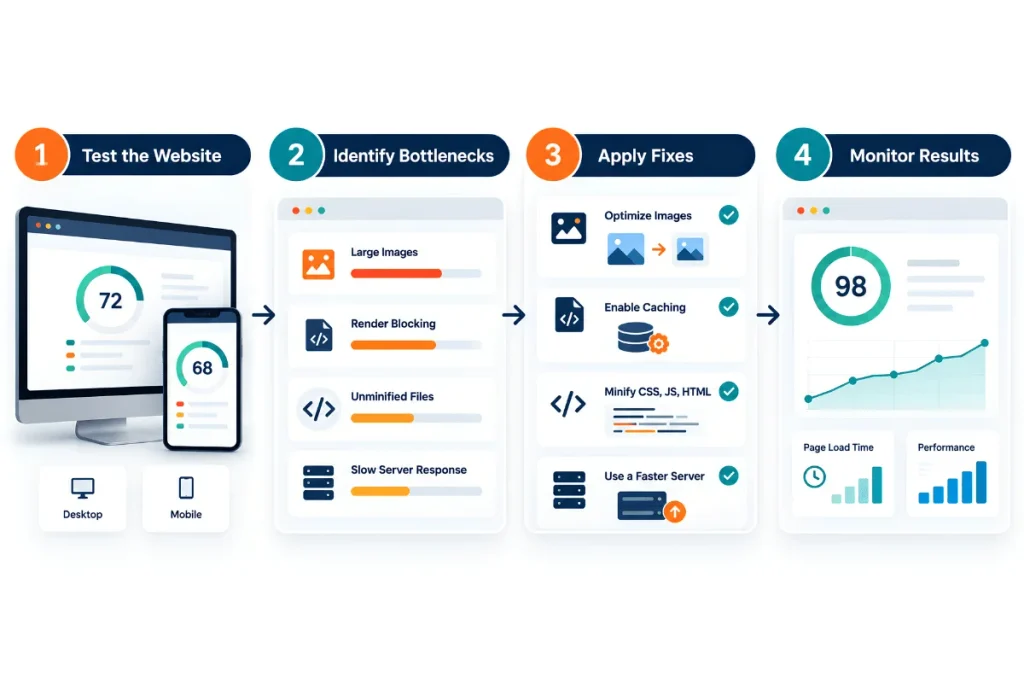
Follow this workflow:
- Test important URLs before making changes.
- Record the main metrics and issues.
- Identify the changes likely to have the greatest impact.
- Fix one group of problems at a time.
- Test again under comparable conditions.
- Check that the website still works correctly.
- Monitor performance after future updates.
A performance score is useful for tracking progress, but it should not be your only goal. Focus on better loading, responsiveness, visual stability, and the actual experience of your visitors.
Best Website Speed Testing Tools
Choosing the right tool makes it easier to understand performance problems and measure progress.
| Tool | Best Use | What to Check |
|---|---|---|
| Google PageSpeed Insights | Page performance and Core Web Vitals | Mobile and desktop results, LCP, INP, CLS, and suggested improvements |
| GTmetrix | Detailed loading analysis | Waterfall charts, resource sizes, and slow requests |
| Lighthouse | Development and diagnostic testing | Performance audits and opportunities for improvement |
| Pingdom Website Speed Test | Basic loading analysis | Load behavior and performance issues visible in its report |
How to Use PageSpeed Insights
Start with your homepage, then test important service pages, blog posts, landing pages, and product pages.
- Open PageSpeed Insights.
- Enter the complete URL you want to test.
- Run the analysis.
- Review the mobile and desktop reports.
- Check the Core Web Vitals assessment and available field data.
- Read the diagnostic recommendations.
- Prioritize issues based on their likely impact and implementation effort.
PageSpeed Insights uses Lighthouse for lab testing and can display field data from the Chrome User Experience Report when enough data is available. The two types of data can differ because they represent different testing conditions and user experiences. You can read more in Google’s PageSpeed Insights documentation.
How to Read a GTmetrix Report
GTmetrix can help you investigate why a page is slow rather than relying only on its overall grade.
Pay attention to:
- Largest Contentful Paint: How quickly the main visible content appears.
- Total page size: How much data the browser downloads.
- Number of requests: How many resources the page requests.
- Waterfall chart: Which resources take the longest to load.
- Structure recommendations: Potential improvements identified by the report.
For example, if the waterfall chart shows that a large hero image takes a long time to load, start by checking its dimensions, file size, format, and loading priority. If the server responds slowly before the page begins loading, investigate hosting, caching, and backend performance.
Website Speed Optimization for WordPress
WordPress websites can become slower when themes, plugins, images, and external scripts accumulate over time. The solution is not simply to install more optimization plugins. It is to identify the actual causes of poor performance.
Use this checklist:
Review your theme: Choose a theme that provides the design and features you need without unnecessary code.
Audit your plugins: Remove unused plugins and investigate those that load unnecessary assets or increase server processing time.
Optimize images: Resize and compress images before uploading them. Use modern formats where suitable.
Configure caching: Use a suitable caching solution and check that its settings work with your hosting environment.
Minimize unnecessary scripts: Review page builders, sliders, popups, chat tools, and other features that add loading work.
Keep WordPress updated: Maintain supported versions of WordPress, plugins, and themes. Test major changes before applying them to a live website.
Test after every major change: Compare performance before and after updates, and verify that forms, navigation, checkout, and other important functions still work.
Avoid enabling every optimization setting at once. Features such as JavaScript delay, CSS optimization, and lazy loading can occasionally affect layouts or interactive features. Make changes carefully and test the result.
If you are planning a redesign or need a more technically efficient website, explore our WordPress website development guide.
Common Website Speed Optimization Mistakes to Avoid
Even well-intentioned changes can cause problems when they are not tested properly.
Chasing a perfect score: A 100/100 score is not a guarantee of better rankings or conversions. Focus on meaningful performance improvements.
Optimizing only the homepage: Product pages, service pages, landing pages, and blog posts can have different performance problems.
Testing only on desktop: Mobile visitors may experience slower loading and interaction delays.
Installing multiple optimization plugins: Overlapping features can create conflicts and make troubleshooting harder.
Compressing images too aggressively: Smaller files are useful only if the images remain clear enough for their purpose.
Ignoring real-user data: A good lab score may not represent the experience of visitors using different devices and networks.
Making too many changes at once: If several settings change together, it becomes difficult to identify which change helped or caused a problem.
A better approach is to establish a baseline, fix the most important bottlenecks, and compare the results after each meaningful change.
Website Speed Optimization Checklist
Use this checklist during your next performance review.
- Test the homepage and important landing pages.
- Review mobile and desktop performance separately.
- Check LCP, INP, and CLS.
- Compress and resize large images.
- Confirm that the main visible image loads appropriately.
- Enable suitable browser and page caching.
- Remove unnecessary plugins and scripts.
- Review server response time and hosting resources.
- Check whether a CDN would benefit your audience.
- Reduce unnecessary font, video, and widget loading.
- Retest after making changes.
- Monitor performance after website updates.
Prioritize the issues that affect important pages and real visitors. You do not need to complete every possible optimization at once.
Frequently Asked Questions
1. What is website speed optimization?
Website speed optimization is the process of improving how quickly a webpage loads and responds to user actions. It includes image compression, caching, code optimization, server improvements, and reducing unnecessary resources. The goal is to create a faster and smoother experience for visitors.
2. How fast should a website load?
There is no single loading-time target that guarantees good performance for every website. A useful starting point is to aim for fast access to the main content and monitor Core Web Vitals. Google’s recommended good thresholds are LCP of 2.5 seconds or less, INP of 200 milliseconds or less, and CLS of 0.1 or less.
3. Does website speed affect SEO rankings?
Website speed and page experience can contribute to SEO performance, but speed is not the only ranking consideration. Google also evaluates relevance, content quality, and many other signals. Improving speed can make your website easier to use, but it cannot compensate for content that does not meet visitors’ needs.
4. Which tool is best for checking website speed?
Google PageSpeed Insights is a useful starting point because it provides performance diagnostics and real-user data when available. GTmetrix can help investigate individual resource requests through its waterfall charts. Using both can help you understand performance problems and decide what to fix first.
5. How can I improve WordPress website speed?
Start by optimizing images, reviewing your theme and plugins, enabling appropriate caching, and reducing unnecessary scripts. Check your hosting performance if server response time is slow. Test after each significant change to make sure the website remains functional and the performance improvements are genuine.
6. Can website speed optimization improve conversions?
It can help by reducing delays that interrupt browsing, form completion, and checkout. A faster website can make it easier for visitors to reach important information and complete actions. However, conversion results also depend on pricing, trust, design, product quality, and how well the page matches user intent.
7. How often should I test website speed?
Test your website after major design changes, plugin updates, new tracking integrations, or other changes that could affect performance. Regular monitoring can also help identify unexpected slowdowns. The right frequency depends on how often your website changes and how important performance is to your business.
Conclusion
Website speed optimization is an important part of maintaining a useful, reliable, and search-friendly website. Optimizing images, configuring caching, reducing unnecessary scripts, improving hosting, and monitoring Core Web Vitals can help improve performance.
Start by testing your most important pages and identifying the biggest bottlenecks. Fix the issues that affect visitors most, then test again to confirm the results.
If your website needs broader technical improvements, explore our SEO services to learn how technical SEO and website performance can support your organic growth strategy.
A faster website is not just about achieving a higher score. It is about helping visitors find information, use your website, and complete their goals with less friction.