
A website can attract visitors from Google, social media, and paid campaigns, yet many people may leave without exploring another page or taking the next step. This can be frustrating for businesses that invest time and money in online marketing.
A high bounce rate can point to problems with page speed, content relevance, navigation, or user experience. However, it does not always mean your website is performing poorly. Some visitors leave after finding the exact information they need.
The key is to understand why visitors leave and identify the pages that need attention. In this guide, you will learn how to reduce website bounce rate through nine practical improvements, check the right metrics in Google Analytics 4 (GA4), and measure the results of your changes.
What Is Website Bounce Rate?
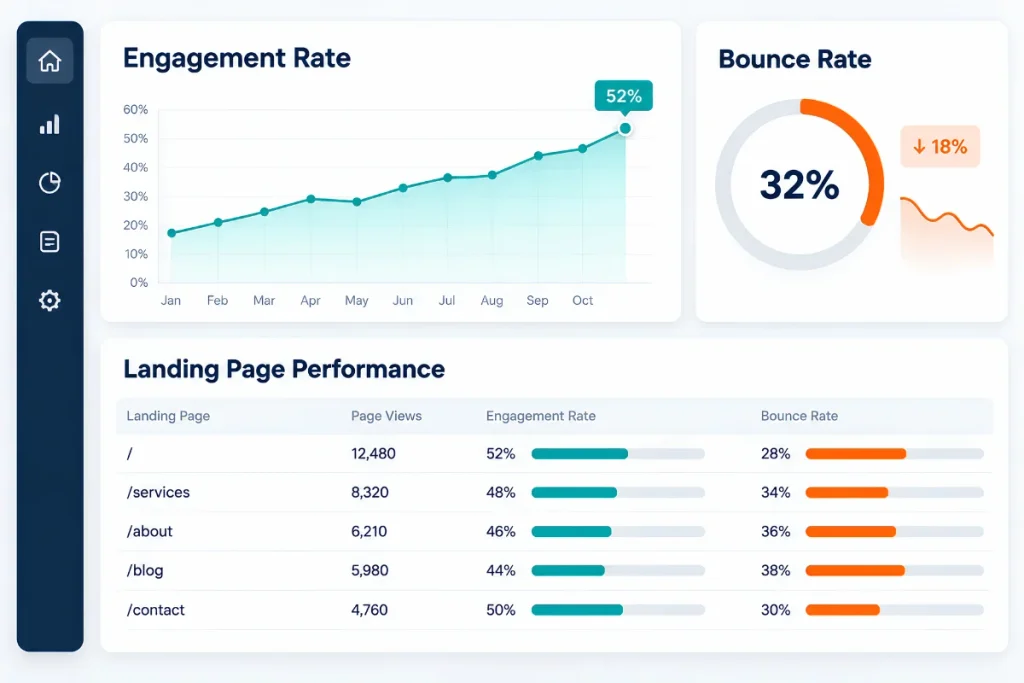
Website bounce rate measures the percentage of sessions that do not qualify as engaged sessions in Google Analytics 4.
An engaged session in GA4 meets at least one of these conditions:
- It lasts longer than 10 seconds.
- It includes a key event.
- It includes at least two page or screen views.
Bounce rate is the opposite of engagement rate. A session that does not meet any of the engaged-session conditions counts as a bounce in GA4. Google’s official GA4 documentation explains how these metrics work.
For example, a visitor may open a blog post, read for eight seconds, and leave without viewing another page or triggering a key event. That session may count as a bounce. Another visitor may spend 20 seconds reading the same article and leave without visiting another page. That session qualifies as engaged, so it does not count as a bounce.
This is why understanding the measurement method matters before making changes to your website.
How Is Bounce Rate Calculated?
The formula is:
Bounce Rate = (Non-Engaged Sessions ÷ Total Sessions) × 100
For example, suppose your website records 2,000 sessions in a month, and 700 of them are not engaged sessions.
Bounce rate = (700 ÷ 2,000) × 100 = 35%
| Metric | Example |
|---|---|
| Total sessions | 2,000 |
| Engaged sessions | 1,300 |
| Non-engaged sessions | 700 |
| Engagement rate | 65% |
| Bounce rate | 35% |
In this example, the engagement rate is 65%, while the bounce rate is 35%.
Do not compare bounce rates from different analytics platforms without checking their definitions. The measurement method can differ, and the same website activity may produce different results.
Is a High Bounce Rate Always Bad?
No. A high bounce rate does not automatically mean that a page is unsuccessful.
Consider these examples:
- Blog post: A visitor reads the full article, finds the answer, and leaves. The page may have served its purpose.
- Contact page: A visitor finds your phone number and calls your business. The website may have generated a valuable enquiry.
- Service page: A visitor leaves quickly because the page does not explain the service clearly. This may indicate a problem.
- Landing page: A visitor arrives from an advertisement but finds an offer that does not match the ad. The mismatch may cause an early exit.
The page’s purpose, traffic source, engagement, and conversion results all matter.
Instead of trying to reach an arbitrary bounce-rate target, compare similar pages over time and investigate the ones with weak engagement or poor business results.
9 Ways to Reduce Website Bounce Rate
1. Improve Website Loading Speed
Slow pages can frustrate visitors before they have a chance to read the content or interact with the website.
Start by checking your important landing pages and identifying performance problems. Large images, unnecessary scripts, excessive plugins, and poorly configured caching can contribute to slow loading.
Practical improvements include:
- Compressing large images without noticeably reducing quality.
- Using modern image formats such as WebP when suitable.
- Enabling browser caching.
- Removing unnecessary scripts and plugins.
- Reviewing third-party widgets and tracking scripts.
- Improving server response time.
- Checking mobile performance separately from desktop performance.
Use Google PageSpeed Insights to examine performance and identify possible improvements.
Also review Google’s page experience guidance for information about Core Web Vitals, mobile usability, and intrusive elements.
Do not focus on a single speed score alone. Prioritize issues that affect real visitors and the usability of important pages.
2. Match Your Content With Search Intent
Visitors usually arrive with a specific question, problem, or goal. Your page should address that need quickly.
For example, someone searching for “how to reduce website bounce rate” expects practical advice, an explanation of the metric, and steps they can follow. A page that immediately pushes a sales offer without answering the question may disappoint that visitor.
Review these elements:
- SEO title
- Meta description
- Main heading
- Introduction
- Page content
- Search query
- Traffic source
Make sure they communicate a consistent message.
If your title promises a step-by-step guide, provide clear steps. If your advertisement promotes a discount, show the same offer on the landing page.
You can also use search queries and landing-page reports to find pages attracting visitors whose needs do not match the content.
Relevant traffic is more valuable than traffic that arrives for the wrong reason.
3. Make Content Easy to Read
Even useful content can lose readers if it is difficult to scan.
Large blocks of text, unclear headings, unnecessary repetition, and complicated language make it harder for visitors to find the information they need.
Improve readability by using:
- Short paragraphs.
- Clear H2 and H3 headings.
- Bullet points for lists.
- Tables for useful comparisons.
- Relevant images and diagrams.
- Bold formatting for important details.
- Direct answers near the beginning of a section.
Keep each section focused on one main idea. Remove sentences that repeat information without adding value.
For long articles, add a table of contents when it helps readers jump directly to the relevant section.
The aim is not to make every page shorter. It is to make the information easier to understand and use.
4. Improve the Mobile User Experience
Your website may look good on a desktop screen but feel difficult to use on a mobile phone.
Small text, crowded buttons, overlapping sections, slow-loading images, and forms that require too much typing can make visitors leave.
Open your main pages on different screen sizes and check:
- Can visitors read the text without zooming?
- Are buttons easy to tap?
- Is the main CTA visible?
- Do images fit the screen?
- Does the navigation work properly?
- Are forms easy to complete?
- Do pop-ups block the main content?
Pay particular attention to mobile landing pages receiving traffic from search and advertising campaigns.
If mobile visitors have a much lower engagement rate than desktop visitors, investigate the difference before changing the whole website.
For technical layout or responsive-design problems, professional website development services may help address issues with page structure, performance, and usability.
5. Add Relevant Internal Links
Internal links help visitors discover related information without returning to Google or searching through your website navigation.
For example, a blog about bounce rate can link to a guide about analytics, a related article about heatmaps, or a relevant service page.
Place links inside the paragraph where they provide additional value. Use descriptive anchor text that tells readers what the destination covers.
For example, if readers want to investigate visitor behavior, link to how to create a heatmap for your website. The guide explains how click and scroll heatmaps can help reveal patterns in website interaction.
You can also add a related-articles section at the end of a blog post. Choose articles that help readers continue learning about the subject.
Avoid adding unrelated links simply to increase the number of internal links. A smaller number of useful links is better than a long list that distracts readers.
6. Give Visitors a Clear Next Step
A page should make it easy for visitors to understand what they can do next.
Depending on the page’s purpose, that action could be reading a related guide, viewing a service, requesting a quote, downloading a resource, or purchasing a product.
Use clear CTA wording, such as:
- Read the Complete Guide
- Explore Our Services
- Request a Quote
- View Related Products
- Book a Consultation
Place the CTA near the relevant content rather than forcing visitors to search for it.
For an informational blog, a related article may be more appropriate than an immediate sales pitch. For a product page, a clear product selection and purchase button may be the right next step.
Make sure the CTA works properly on desktop and mobile. A button that looks clear but leads to an incorrect page or broken form can damage the user experience.
7. Reduce Intrusive Pop-Ups and Distractions
Pop-ups can help collect enquiries or email sign-ups, but poorly timed messages can interrupt visitors before they understand the page.
Avoid displaying multiple pop-ups immediately after a visitor arrives. Also review sticky banners, auto-playing media, oversized advertisements, and chat widgets that cover important content.
If you use pop-ups:
- Give visitors time to read the page.
- Keep the message relevant to the content.
- Make the close button easy to find.
- Avoid showing several offers at once.
- Check how the pop-up behaves on mobile.
- Measure completed actions rather than impressions alone.
For example, a guide about website analytics could offer a related checklist after the visitor has had time to read. A full-screen offer that blocks the introduction may create unnecessary friction.
Keep promotional elements useful and easy to dismiss.
8. Build Trust and Make Your Offer Clear
Visitors may leave if they cannot understand what your business does or why they should trust the information on your website.
Your main page should explain the offer clearly and provide evidence that supports your claims.
Depending on the business, useful trust elements include:
- Genuine customer reviews.
- Relevant testimonials.
- Detailed case studies.
- Clear service descriptions.
- Accurate contact information.
- Transparent pricing or next steps.
- Relevant qualifications and certifications.
- Secure payment and privacy information where applicable.
For example, a service page that lists several services without explaining the benefits may leave visitors unsure about what to do next. A clearer description, relevant evidence, and a direct CTA can make the decision easier.
Only use genuine reviews, results, and credentials. Unsupported claims can weaken trust rather than build it.
9. Use Analytics and Heatmaps to Find Problems
Do not guess why visitors leave. Start with the data and investigate the pages that need attention.
In Google Analytics 4, review engagement rate and bounce rate alongside metrics such as sessions, engagement time, key events, and traffic source.
You can follow this guide to use Google Analytics 4 to analyze website performance. It explains how to review traffic sources, user engagement, landing pages, and important website actions.
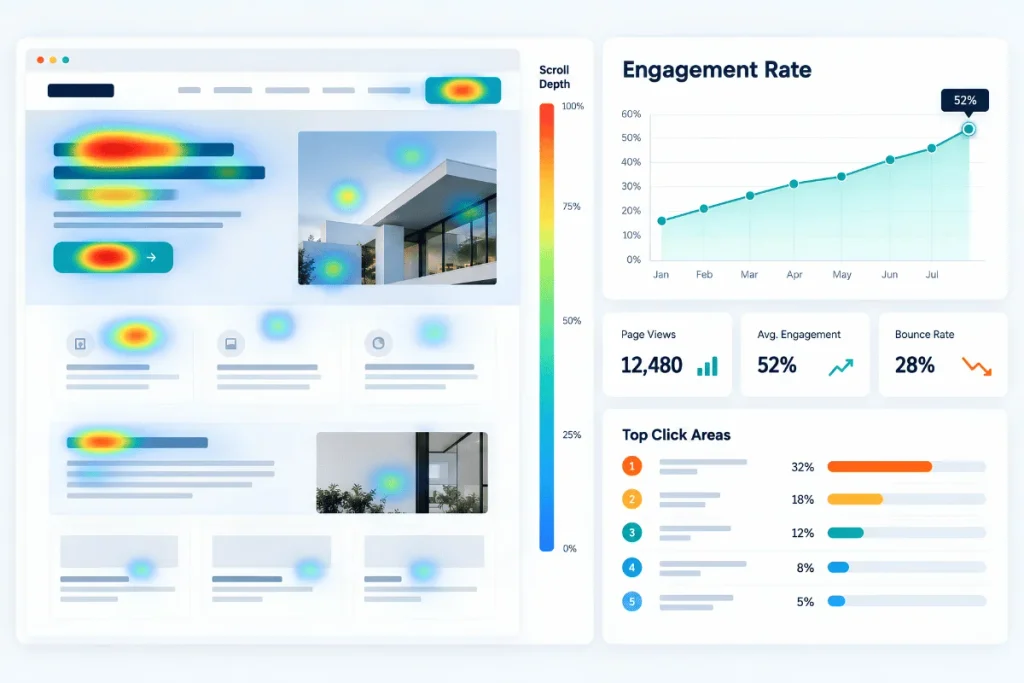
Heatmaps can add visual context by showing where visitors click and how far they scroll. They can help you investigate whether users notice the main CTA or reach important sections.
Use the findings to form a specific hypothesis. For example:
- Observation: Mobile visitors rarely reach the enquiry form.
- Possible cause: The page contains too much content before the form.
- Proposed change: Test a clearer CTA earlier in the page.
- Measurement: Compare engagement and form submissions before and after the change.
A heatmap does not prove why visitors behave in a particular way. Combine it with analytics, user feedback, and testing before making major changes.
How to Check Bounce Rate in Google Analytics 4
Use the following process to investigate pages with weak engagement.
Step 1: Open Your GA4 Property
Sign in to Google Analytics and select the property connected to your website. Confirm that data collection is working correctly.
Step 2: Review Engagement Reports
Open the available engagement reports and review metrics such as engagement rate, bounce rate, average engagement time, and key events.
The exact report layout may vary with your property’s configuration and permissions.
Step 3: Identify Pages That Need Attention
Compare important landing pages and look for pages with low engagement or weak conversion results.
Do not rank pages by bounce rate alone. A blog post, product page, and contact page serve different purposes.
Step 4: Compare Traffic Sources and Devices
Check whether engagement differs across organic search, paid advertising, social media, referral traffic, desktop, and mobile.
A problem limited to one traffic source may point to a mismatch between the campaign message and the landing page.
Step 5: Check Tracking Accuracy
Confirm that your analytics tag is installed correctly and that key events are configured as intended. Missing or incorrect tracking can produce misleading results.
For the official definitions and reporting guidance, consult Google Analytics Help: Engagement rate and bounce rate.
Bounce Rate vs. Engagement Rate
These metrics are closely related in GA4, but looking at both can make reporting easier to understand.
| Metric | What It Measures | How to Use It |
|---|---|---|
| Bounce rate | Percentage of sessions that were not engaged | Identify sessions with limited engagement |
| Engagement rate | Percentage of sessions that were engaged | Compare engagement across pages and traffic sources |
| Average engagement time | Average time the website or app was actively in focus for users | Understand active engagement with content |
| Key events | Important actions configured for measurement | Check whether visitors complete valuable actions |
For example, a page with a 70% bounce rate has a 30% engagement rate under GA4’s definitions for the same set of sessions.
That number alone does not explain performance. Review the page’s purpose, traffic source, engagement time, and key events before deciding what to change.
Practical Example: Diagnosing a High Bounce Rate
Imagine a service page receives 2,500 sessions per month but generates very few enquiries.
The first step is to review the page’s engagement and key events in GA4. Next, compare traffic sources and devices to see where the weakest results occur.
Suppose the analysis shows that mobile visitors have lower engagement than desktop visitors. A heatmap review then suggests that many mobile users do not reach the enquiry form.
The business could test three changes:
- Move a clear CTA closer to the beginning of the page.
- Simplify the mobile layout.
- Reduce unnecessary fields in the enquiry form.
The team should then compare engagement and enquiry submissions over an appropriate period, taking traffic and other changes into account.
This example illustrates a diagnostic process, not a guaranteed outcome. The actual cause needs to be confirmed with real website data.
Common Mistakes to Avoid
Chasing an Arbitrary Bounce-Rate Target
There is no universal bounce rate that guarantees success. Set a baseline for comparable pages and focus on meaningful engagement and business outcomes.
Changing Too Many Things at Once
If you change the headline, layout, CTA, form, and navigation together, it becomes harder to identify what affected the result. Prioritize the main problem and test focused changes.
Ignoring Traffic Quality
A page may have high bounce rates because it attracts visitors who are not interested in the offer. Review search queries, ad targeting, referral sources, and landing-page relevance.
Treating Every Exit as a Failure
Visitors may leave after completing a task, finding a phone number, or reading a complete answer. Check the page’s purpose and available conversion data before deciding that the exit is a problem.
Forgetting to Check Tracking
Incorrect analytics configuration can affect the reliability of your reports. Confirm that tracking and key events work correctly before using the data to guide major decisions.
Website Bounce Rate Optimization Checklist
Use this checklist when reviewing important website pages.
- Page titles and content match visitor expectations.
- Important pages load properly on desktop and mobile.
- Text is readable and sections are easy to scan.
- The main CTA is clear and functional.
- Internal links lead to relevant content.
- Pop-ups do not block important information.
- Trust information is accurate and easy to find.
- GA4 engagement and key-event tracking work correctly.
- Traffic sources and devices have been compared.
- Changes are measured after implementation.
Start with the pages that matter most to your business, such as key service pages, landing pages, product pages, and high-traffic blog posts.
Frequently Asked Questions
1. How can I reduce website bounce rate?
Start by checking which pages have weak engagement and why. Improve loading speed, match content with search intent, simplify mobile navigation, make CTAs clear, add useful internal links, and remove unnecessary distractions. Measure the results using GA4 engagement metrics and relevant business outcomes.
2. What is a good website bounce rate?
There is no single rate that works for every website. Results depend on the page’s purpose, traffic source, audience, and measurement setup. Compare similar pages over time and consider engagement and conversions alongside bounce rate.
3. Is an 80% bounce rate bad?
An 80% bounce rate deserves investigation when the page is expected to encourage further interaction, such as a service page or product landing page. It may be less concerning for a page that answers a specific question. Check GA4 engagement, traffic quality, key events, and the visitor’s likely goal before deciding.
4. Does bounce rate affect SEO rankings?
Bounce rate is not a direct Google ranking factor in the way it is commonly described in SEO discussions. However, page relevance, usability, content quality, and technical performance matter to the overall website experience. Focus on helping visitors and meeting their needs instead of trying to manipulate one analytics metric.
5. How do I check bounce rate in GA4?
Open your GA4 property and review the available engagement reports. Compare bounce rate with engagement rate, average engagement time, traffic sources, and key events. If the metric is missing from a report, you may need to customize the report or use an exploration.
6. Can internal links reduce bounce rate?
Relevant internal links can encourage visitors to explore related information on your website. Place them naturally in the content and use descriptive anchor text. Their value depends on whether the destination is useful to the visitor, so review link clicks and engagement rather than adding links just to lower bounce rate.
7. Do pop-ups increase bounce rate?
Poorly timed or intrusive pop-ups can interrupt visitors and make a page difficult to use. A relevant, easy-to-dismiss offer may still be useful when shown at an appropriate time. Test the experience and measure completed actions to determine if the pop-up helps or creates friction.
Final Takeaway
To reduce website bounce rate, first understand why visitors leave. A high rate can point to issues with content relevance, loading speed, mobile usability, navigation, or tracking, but it is not automatically a sign of failure.
Review your GA4 data, compare similar pages, investigate visitor behavior, and make focused improvements. Use internal links to guide readers to relevant information, keep CTAs clear, and test important changes before making further adjustments.
The goal is not simply to keep visitors on your website for longer. It is to help them find the right information, complete their task, and take the next step when it is useful to them.