

If you want to improve your website, knowing how many people visit a page is only part of the picture.
You also need to understand what visitors do after they arrive.
Do they click your main CTA? Do they scroll far enough to see your offer? Are they clicking something that is not actually clickable? Do mobile visitors interact with the page differently from desktop users?
A website heatmap can help answer these questions by visually showing aggregated patterns of user interaction. Modern heatmap tools can analyze clicks, scrolling, attention, and other behaviors across webpages. Microsoft Clarity, for example, currently supports click, scroll, area, conversion, and attention heatmaps.
In this guide, we will explain how to create a heatmap for your website, from choosing the right tool to installing tracking, generating your first heatmap, analyzing the data, and turning the findings into practical website improvements.
What Is a Website Heatmap?
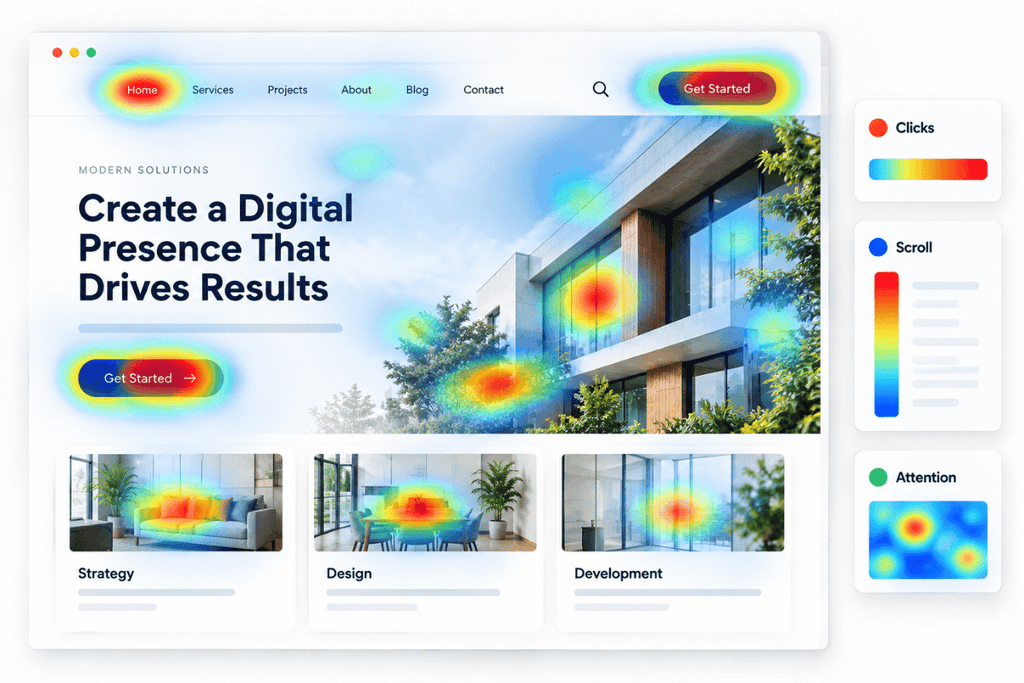
A website heatmap is a visual representation of aggregated visitor behavior on a webpage.
Depending on the tool, a heatmap can show clicks, scrolling, attention, and other interaction patterns. For example, Microsoft Clarity’s heatmap documentation explains how its heatmaps can be used to analyze website interactions.
Instead of looking only at numbers in an analytics dashboard, you can see where users are interacting with different parts of a page.
Depending on the tool, a heatmap can show:
- Where visitors click or tap
- How far visitors scroll
- Which areas receive more interaction
- Which elements receive little attention
- How behavior differs across devices
- Which interactions are connected with conversions
Most heatmaps use a color scale to represent interaction intensity. Warmer areas generally indicate more activity, while cooler areas indicate less activity, although the exact visualization depends on the tool and heatmap type.
This makes heatmaps particularly useful for UX analysis, landing-page optimization, content improvement, and conversion rate optimization.
Why Should You Create a Heatmap for Your Website?
Website analytics can tell you what happened, but a heatmap can add visual context about where the interaction happened.
For example, suppose a service page gets thousands of visitors but very few enquiries.
Your analytics may show the traffic and conversion numbers, but a heatmap could reveal that:
- Visitors rarely click the primary CTA.
- Users stop scrolling before reaching the enquiry form.
- An image receives unexpected clicks.
- Navigation receives heavy interaction.
- Mobile users behave differently from desktop visitors.
These observations can help you form better hypotheses about the page.
Heatmaps are therefore most useful when combined with other analytics rather than treated as a complete explanation of user behavior. FullStory and Heap both emphasize using heatmaps alongside tools such as session replay, analytics, and testing.
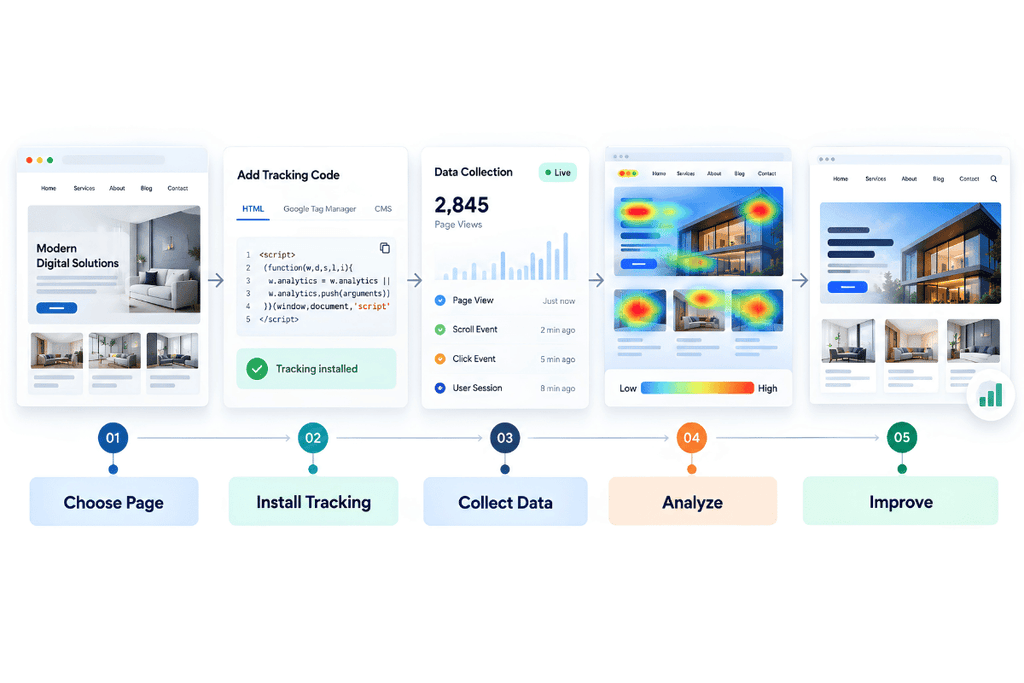
7 Steps to Create a Heatmap for Your Website
Step 1: Choose the Page You Want to Analyze
Start with one important page, rather than trying to analyze your entire website immediately.
Good options include:
- Homepage
- Service page
- Product page
- Landing page
- Pricing page
- Contact page
- Checkout page
- Lead-generation page
Choose a page where you already have a clear business or UX question.
For example:
Are visitors noticing our main CTA?
Or:
Are visitors reaching the enquiry form?
This gives your heatmap analysis a specific purpose.
Competitor guides also recommend choosing the page or URL before generating the heatmap. Heap’s current workflow specifically includes selecting the page or URL, date range, and device before generating results.
Step 2: Choose a Heatmap Tool
There are several tools available for website heatmap analysis.
Common options include:
Microsoft Clarity
Clarity provides click, scroll, area, conversion, and attention heatmaps. It also supports device and URL filtering.
Hotjar
Hotjar provides heatmaps that can help analyze clicks, taps, scrolling, mouse movement, and engagement. Its current resources also connect heatmap analysis with session recordings and UX improvement.
FullStory
FullStory provides click and scroll heatmaps along with session-level analysis and filtering options such as device type, segments, and time range.
Heap
Heap combines heatmaps with broader product analytics and describes an eight-step process for creating and analyzing heatmaps.
Wingify
Wingify’s guide demonstrates creating heatmap views by selecting URLs, segments, and other settings before generating the report.
For a simple starting point, Microsoft Clarity is worth considering because its current documentation states that there is no minimum traffic limitation for generating heatmaps.
Step 3: Install the Tracking Code
After choosing your tool, connect it to your website.
Most heatmap platforms require a tracking script or supported integration so they can collect visitor interaction data.
For example, Microsoft Clarity provides installation and setup documentation for adding its tracking code to a website.
Depending on your website setup, you may be able to install the tracking code through:
- Website code
- Google Tag Manager
- WordPress
- Another supported integration
Make sure the tracking installation is working before making decisions from the data.
This is important because heatmaps are generated from collected interaction data. Microsoft states that heatmaps are displayed on pages where the Clarity tracking code is installed.
Step 4: Select the URL, Device, and Date Range
Once tracking is active, select the page you want to analyze.
Depending on the tool, you may be able to filter the heatmap by:
- Specific URL
- Group of URLs
- Desktop
- Tablet
- Mobile
- Date range
- User segment
- Other available filters
Microsoft Clarity currently allows URL/path filtering, supported device selection, time-frame selection, and segments.
This matters because users do not always behave the same way on different devices.
For example, a CTA that receives strong desktop interaction may be less visible or harder to use on mobile.
So instead of looking only at All Devices, compare:
Desktop vs Mobile
This can uncover problems that a combined report may hide.
Step 5: Generate Your First Heatmap
After selecting your page and filters, generate or open the heatmap.
The exact process depends on the platform.
For example, FullStory’s current workflow allows users to create a heatmap, select a page or URL, apply device, segment, and time-range filters, then choose a click or scroll map.
Microsoft Clarity automatically generates heatmaps from collected data and allows users to open heatmaps for popular pages or specific URLs.
Once your heatmap is available, don’t immediately start changing your website.
First, understand what the data is showing.
Step 6: Analyze the Heatmap
This is where the heatmap becomes useful.
Creating one is only the beginning. The important part is turning the visual pattern into a reasonable question or hypothesis.
Analyze Click Maps
Click maps show where visitors click or tap.
Look for:
- Strong interaction with your primary CTA
- Low interaction with important buttons
- Repeated clicks on non-clickable elements
- Unexpected clicks on images
- Heavy interaction with navigation
- Differences between desktop and mobile
Microsoft Clarity’s click maps can also distinguish interaction types such as all clicks, dead clicks, rage clicks, error clicks, first clicks, and last clicks.
A high number of clicks does not automatically mean that an element is performing well.
For example, users repeatedly clicking a non-clickable image could indicate that the design makes the image appear interactive.
That is a signal to investigate, not an automatic reason to change it.
Analyze Scroll Maps
Scroll maps show how far users travel down a page.
They can help you determine whether visitors reach important content.
For example:
Hero section → Services → Benefits → CTA → Form
If a large percentage of visitors never reaches the CTA or form, you may want to investigate the page structure.
Microsoft Clarity’s scroll maps show the percentage of users reaching different points on a page and also provide an average-fold view.
But remember that lower engagement at the bottom of a page is not automatically a problem.
Some visitors may find the information they need earlier.
Analyze Attention or Movement Data
Some platforms provide additional views that help show where visitors spend time or move their cursor.
Microsoft Clarity’s attention maps show the amount of time users spend across different parts of a page.
Hotjar also provides engagement-oriented heatmap views that combine different interaction signals to help identify highly engaged areas.
These views can help you investigate whether important content is receiving meaningful attention.
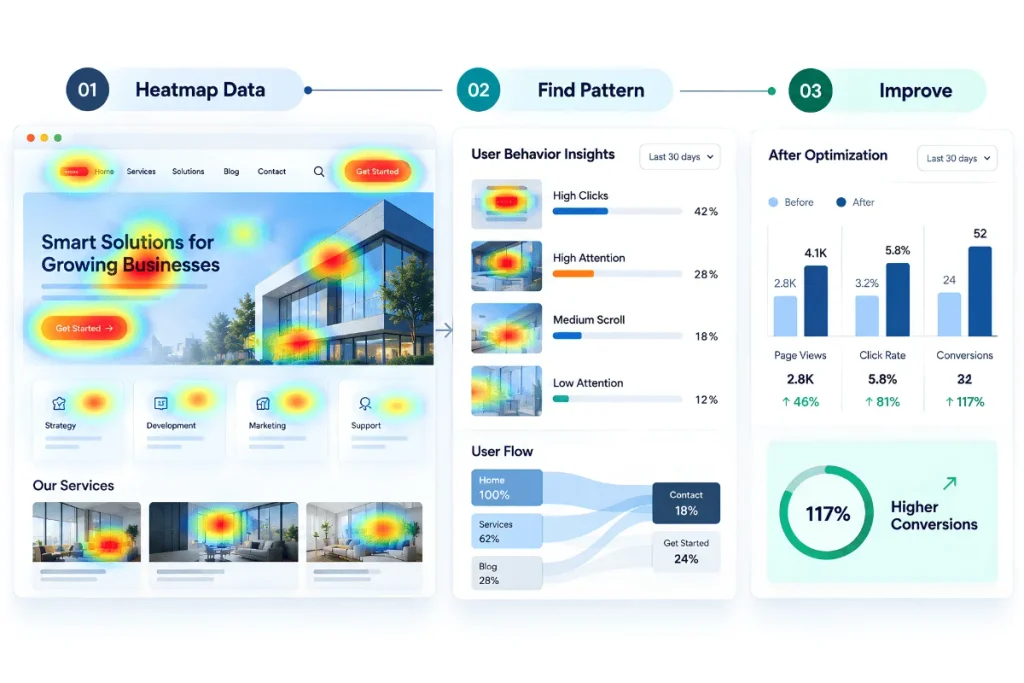
Step 7: Turn Heatmap Findings Into Website Improvements
The final step is to use your findings.
A heatmap should not simply become a screenshot that sits in a report.
Use it to create a clear hypothesis.
For example:
Observation:
Visitors are not interacting with the primary CTA.
Question:
Is the CTA difficult to notice or positioned too late on the page?
Change:
Test a more visible CTA placement.
Measurement:
Compare interaction and conversion data after the change.
This creates a simple optimization cycle:
Track → Analyze → Hypothesize → Improve → Test → Measure
That is much more useful than changing multiple elements at the same time.
Website Heatmap Types Explained
Different heatmap types answer different questions.
| Heatmap Type | What It Shows | Useful For |
|---|---|---|
| Click Map | Where visitors click or tap | CTA and navigation analysis |
| Scroll Map | How far visitors scroll | Content visibility |
| Area Map | Click activity within selected areas | Section-level analysis |
| Attention Map | Time spent across page areas | Engagement analysis |
| Conversion Map | Conversion activity associated with areas | Ecommerce analysis |
Microsoft Clarity currently supports all five of these heatmap categories.
How to Read Heatmap Colors
Heatmap colors are designed to make patterns easier to understand.
In many interfaces:
- Warm colors indicate more activity.
- Cool colors indicate less activity.
However, do not interpret a warm area as automatically “good.”
A heavily clicked navigation element may simply mean users are looking for something.
Likewise, a low-interaction section may be perfectly acceptable if it is not intended to drive an action.
The meaning depends on the purpose of the page and the element being analyzed.
Microsoft Clarity, for example, explains that warmer colors represent greater activity in its heatmap visualizations.
Heatmap + Analytics: Use Both Together
A heatmap becomes more useful when combined with traditional analytics.
Imagine a landing page has:
High traffic + low conversions
You open the heatmap and discover:
Low interaction with the main CTA
You then inspect session recordings and discover visitors are scrolling through the page but not interacting with the CTA.
Now you have a stronger hypothesis to investigate.
This is why heatmaps should complement tools such as analytics, session recordings, and A/B testing. Heap specifically recommends using heatmaps alongside session replay, A/B testing, and digital analytics for deeper analysis.
You can also combine this type of analysis with your broader digital marketing services strategy when improving landing pages, campaigns, and conversion paths.
Heatmap Example: Improving a Service Page
Imagine a digital marketing agency has a service page receiving 3,000 visits per month.
The page contains:
- Service information
- Benefits
- Case studies
- Testimonials
- CTA
- Contact form
Analytics shows that traffic is healthy, but enquiries are lower than expected.
The team creates a heatmap.
The results show that visitors interact heavily with the navigation and early content, but comparatively little interaction reaches the main enquiry CTA.
The scroll map also shows that a significant portion of visitors does not reach the form.
Instead of redesigning the entire page, the team could test:
- Moving an important CTA higher.
- Reducing unnecessary content before the CTA.
- Making the value proposition clearer.
- Improving mobile CTA placement.
- Testing a shorter enquiry form.
The team can then create another measurement period and compare the results.
The important point is that the heatmap identified areas to investigate. It did not automatically explain the cause.
Common Heatmap Mistakes to Avoid
1. Trying to Analyze Every Page
Start with pages that matter to your business goals.
A high-value landing page usually gives you a clearer starting point than a random low-traffic page.
2. Making Decisions From Very Little Data
A small number of interactions may not represent a stable pattern.
Heap recommends using heatmaps with enough aggregated session data to make the findings meaningful.
3. Looking Only at Desktop
Always consider mobile behavior separately when mobile traffic is important to the page.
Modern heatmap platforms support device-based analysis.
4. Treating Red as “Good”
A hot area simply indicates more activity according to the visualization.
It does not automatically mean the element is helping conversions.
5. Changing Too Many Things Together
If you change the CTA, headline, page structure, form, images, and navigation at once, you won’t know which change affected the result.
Make focused changes whenever possible.
6. Using Heatmaps Without a Question
Do not open a heatmap simply to “see what happens.”
Start with a question such as:
Why are visitors not reaching the form?
or:
Are mobile visitors noticing the CTA?
This makes the analysis much more actionable.
When Should You Use a Website Heatmap?
Heatmaps can be particularly useful when:
- A landing page gets traffic but few conversions
- Visitors appear to ignore important CTAs
- A website has recently been redesigned
- You are investigating mobile UX
- Users seem to click unexpected elements
- You want to understand page engagement
- You are improving an ecommerce product page
- You are planning a CRO test
They are also useful when you need visual evidence before deciding what part of a webpage deserves further investigation.
How Heatmaps Support CRO
Conversion Rate Optimization focuses on improving the percentage of visitors who complete a desired action.
That action could be:
- Buying a product
- Filling out a form
- Requesting a quote
- Booking a service
- Signing up
- Downloading a resource
Heatmaps can help identify potential friction points in these journeys.
For example, a scroll map may show that users are not reaching a key CTA, while a click map may show unexpected interaction elsewhere on the page.
This information can help you create a focused CRO hypothesis.
Heatmaps are therefore useful as part of a broader optimization process, rather than as a standalone conversion tool. FullStory similarly describes heatmaps as part of broader data-driven website improvement and CRO workflows.
If you are improving organic visibility alongside user experience, our SEO services can help connect technical SEO, content, and website optimization efforts.
Frequently Asked Questions
1. How do I create a heatmap for my website?
Choose a heatmap platform, install its tracking code, select the website page or URL you want to analyze, choose the relevant device and time range, and generate the heatmap. You can then analyze click, scroll, attention, or other available interaction data.
2. Is Microsoft Clarity free for heatmaps?
Microsoft’s current documentation states that Clarity does not have a minimum traffic limitation for generating heatmaps. Its documentation also lists click, scroll, area, conversion, and attention heatmaps as supported types. Check Microsoft’s current product terms for the latest details on availability and features.
3. How much traffic do I need for a heatmap?
There is no universal number that guarantees useful results. Microsoft Clarity states that there is no minimum traffic limitation, but more aggregated sessions can make behavioral patterns easier to interpret. The appropriate amount depends on your traffic, page purpose, audience, and question.
4. Can I create heatmaps for mobile websites?
Yes. Modern heatmap platforms support device-based analysis. Microsoft Clarity allows users to view heatmaps for PC, tablet, and mobile, making it possible to compare behavior across devices.
5. Do heatmaps show why users leave a website?
Not by themselves. A heatmap can show where users click, scroll, or spend attention, but it does not always explain the reason behind that behavior. Session recordings, analytics, surveys, and testing can provide additional context.
6. Can heatmaps improve conversion rates?
Heatmaps can help identify areas worth testing, such as CTA placement, content visibility, and page structure. They do not automatically increase conversions, so improvements should be validated using conversion data or controlled testing.
Final Takeaway
Learning how to create a heatmap for your website is relatively simple.
The more important skill is knowing what to look for after the heatmap is created.
Start with one important page and one clear question. Choose a suitable tool, install tracking correctly, select the right URL and device, generate the heatmap, and analyze clicks, scrolling, and attention.
Then turn the findings into a specific hypothesis and test a focused improvement.
The goal is not to make your heatmap look interesting.
The goal is to understand visitor behavior and use that information to create a website that is easier to use and easier to optimize.